From My videos to your feed: a download checklist
A finished generation is a file you still need to check and save. This checklist takes you from the account’s My videos view to a usable local MP4, with the practical framing and permission decisions made before posting.
Download early, verify the saved file and keep an original copy. Choose 16:9 landscape or 9:16 portrait before generation.
Find the completed job in the right account
Open My videos while signed in to the account that created the session. If the job is still processing or its submission is uncertain, check its status before sending another request. A missing result can mean you are in a different account, the job has not completed, or the stored copy has been deleted or expired.
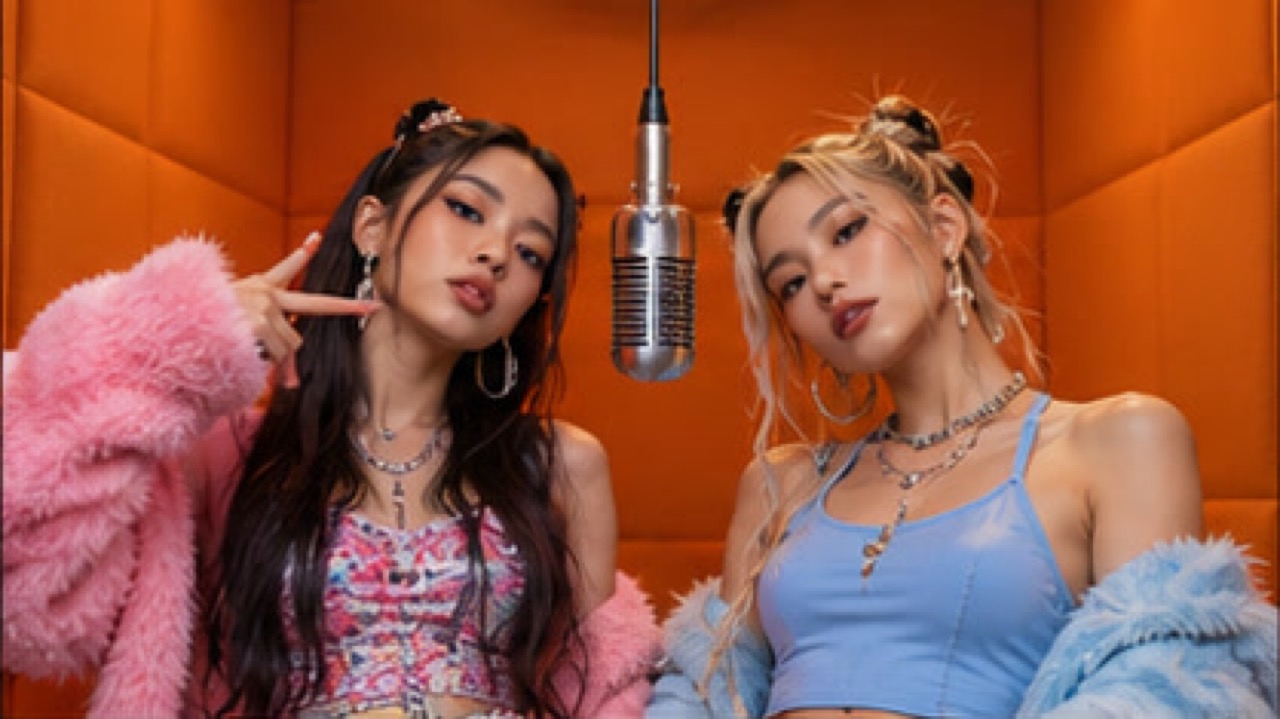
Play the full completed clip in the preview. Check both faces, movement, clothing and lip timing, with sound enabled. Do not use the scene-concept artwork as evidence of your result. If the actual clip has a problem, note the time and performer before deciding whether to keep it or try another paid generation.
Save a local MP4 while it is available
Use the download control, then open the saved file from your device. Confirm that it plays from start to finish and that the soundtrack is present. Give it a useful filename including the session or template, especially when you have several attempts with the same people. Keep the original file before making edits or sending compressed copies.
Completed paid videos are stored privately in Cloudflare R2 for 3 calendar months. First confirmed public sharing extends retention to at least 6 calendar months from that sharing date. A public link lets anyone holding it view, download and forward the finished video; source photos remain private. You can stop sharing, but cannot recall copies already downloaded by others. Download the copy you want to keep instead of treating the history view as permanent storage. Provider-hosted media is separate and may expire. Deleting a history item removes our task record and R2 copy; it does not remove the provider’s separate copy.
Choose portrait or landscape framing
Choose 16:9 landscape or 9:16 portrait in the generation form before submitting. Select the frame that fits your planned destination and review whether both performers and important actions remain visible. Changing the frame on a completed file is not a free regeneration.
A tight vertical crop can cut off one of the two performers or the shared microphone. Review the entire clip after cropping because people move within the frame. If both identities and the mic are central to the joke or performance, a layout that preserves the landscape composition can make more sense than filling every pixel vertically.
Make the final sharing check
Get permission from both consenting adults to share the generated result, not just to upload their photos. Check the soundtrack permissions for your intended use; generation credits do not include music rights. Make clear that the video is AI-generated and avoid claims that the people actually recorded the source vocals.
Read the destination’s current upload and AI disclosure rules before posting. If you add captions, crop the frame or replace audio in a separate editor, watch the new export again. Preserve the original download so you can return to it, and only publish a version that both people are comfortable being associated with.
Based on the AI Video GG studio reviewed October 28, 2026. Check the live template availability and pricing. For data handling and usage terms, read our Privacy Policy and Terms.