How to make a Hotel Lobby AI video from two photos
Two portraits, one hanging mic, a shared orange stage. AI Video GG personalizes a reference performance with your two photo identities. Here is the practical route through your first session, including the checks that matter before you spend credits.
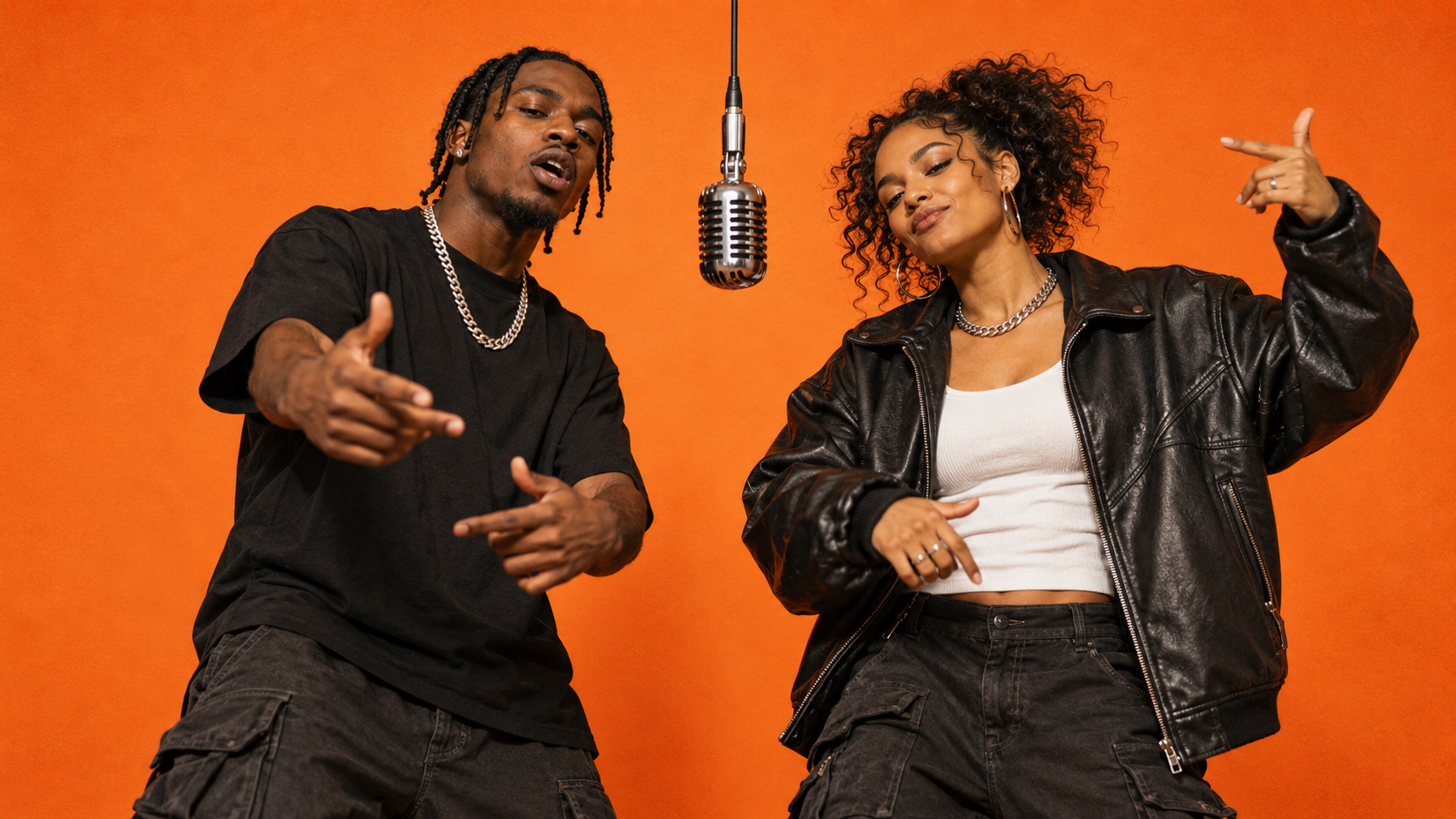
Start with two clear, authorized portraits and an available template. Review the whole result before you share it.
1. Choose your cast before opening the studio
Pick one person per photo. A well-lit portrait with visible eyes, hair and jawline gives the model a more useful identity reference than a group photo or a heavily filtered selfie. Both people must be consenting adults, and you must have permission to use both images. Do not use a celebrity photo to imply that the person performed or endorsed your video.
Keep the original files handy. The studio accepts JPG, PNG and WebP, up to 8 MB each, with each side between 300 and 6,000 pixels. If a file is too large, resize a copy rather than repeatedly compressing a screenshot. Read the photo guide below if either face looks soft or partly hidden.
2. Pick an available template and set the session
Open the template gallery and choose a template with an active Use template control. Orange booth keeps the classic setup; Y2K cypher offers an alternative scene reference. Cards marked Soon are scene concepts, so they cannot submit a generation. Concept artwork illustrates a direction rather than proving a finished result.
Upload performer A into the left slot and performer B into the right slot. Use Swap if the order is wrong. The mapping refers to the first frame of the source performance; it does not rewrite which performer takes the lead. Choose a whole-second duration from 6 to 15 seconds. Choose 16:9 landscape or 9:16 portrait in the form.
3. Check the cost, then submit once
Video generation requires an account and paid credits. New accounts start with 0 credits. Current costs are 20 credits for 480p, 45 credits for 720p, 80 credits for 1080p. Duration does not change that price within the supported range. Check the live studio status and the displayed cost before pressing Generate.
Credits are reserved when the job is submitted. If the connection drops or the submission stays pending, open My videos before trying again. An uncertain submission can still be processing. Confirmed failed jobs return the reserved credits once; a completed video that needs creative improvement is a different outcome.
4. Watch, listen and save your result
Play the full clip rather than judging the first frame. Check both identities through turns, microphone crossings and hand gestures. Look for face blending, changes in hair, inconsistent clothing and distracting lip timing. The template soundtrack is restored after generation; the tool does not create a new recording of your voice.
Download the MP4, open the local file and confirm that both picture and sound work. Completed paid videos remain available privately for 3 calendar months; the first public share extends access to at least 6 calendar months from that sharing date. Save the copy you want to keep. Before posting, confirm permission from both people, check your rights to the soundtrack and make the AI nature of the clip clear.
Based on the AI Video GG studio reviewed October 28, 2026. Check the live template availability and pricing. For data handling and usage terms, read our Privacy Policy and Terms.