Left or right? Cast your two-photo video correctly
The two upload slots are a casting decision. They tell the template which identity belongs to each performer in the first frame. They do not tell the source performance to swap verses, gestures or camera positions.
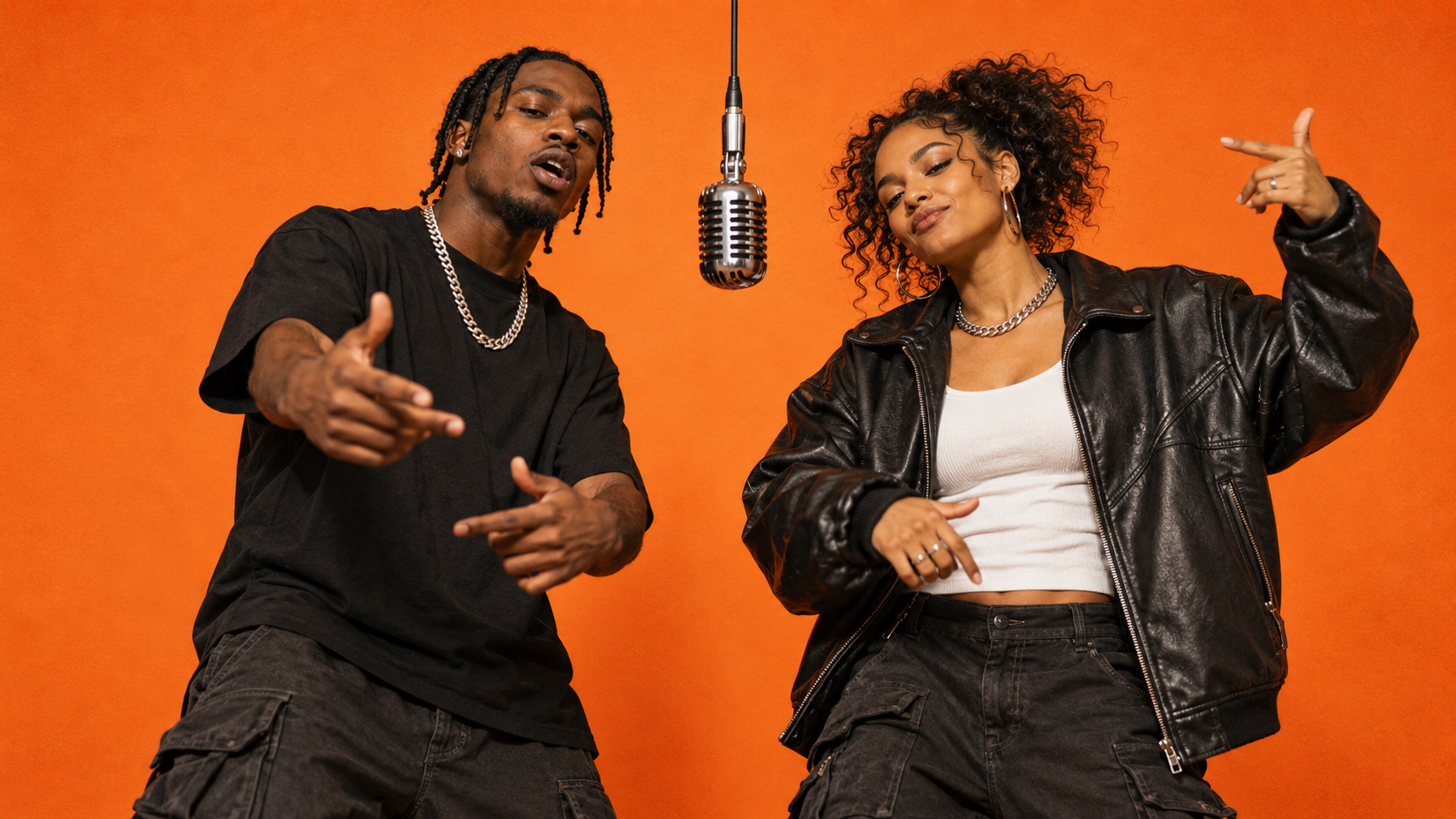
Photo 1 maps to the first-frame left performer; photo 2 maps to the right. Swap changes the photos, not the source choreography.
Read the slots as performer identities
The studio labels its slots Left performer and Right performer. Photo 1 supplies facial identity and hair for performer A, who starts on the left. Photo 2 supplies those references for performer B, who starts on the right. Use two distinct, clear portraits if you want to make the assignment easy to judge.
Left and right describe the first frame. They are not a rule that an identity must remain glued to one half of the screen throughout the clip. The template follows the source body performance, expressions and timing. When someone moves or turns, the intended behavior is to keep that person’s identity attached to their source role.
Use Swap before spending credits
Look at both upload previews before you submit. If you want the other person in the opening left position, use the Swap control. Recheck the previews and filenames afterward. The template choice, duration and quality remain separate decisions; changing the cast order does not require choosing a different scene.
Do not expect Swap to invent a different performance. The studio uses a fixed template prompt and preserves the original lead and supporting roles. There is no custom verse-order control. If a particular moment matters to you, review the available source preview and the completed result rather than assuming a portrait can change the choreography.
Review both people through the difficult moments
Watch the opening frame to establish the assignment, then follow performer A and performer B independently. Pay attention when a head turns away, a hand crosses a face, or a performer approaches the microphone. These moments can reveal identity blending that a clean opening frame hides.
Pause where something looks wrong. Ask whether you have a simple casting mistake, an obscured source portrait or a generated identity error. A reversed upload is solved before submission with Swap. Face blending within a completed clip needs a different approach: clearer references may help, but another paid generation is not a guaranteed correction.
Make the next attempt deliberate
Keep a note of which portrait was assigned to each slot. If you try again, change one variable: replace an unclear portrait, correct the order or compare a shorter supported segment. Avoid changing the photos, scene and resolution all at once, because you will not know which change affected the result.
Every completed attempt uses credits. Shortening a video from 15 to 6 seconds does not reduce the resolution-based generation cost. If the previous job is pending or its submission is uncertain, check My videos before making a second request. Review permissions with both people before sharing either version, and describe the final clip as AI-generated.
Based on the AI Video GG studio reviewed October 28, 2026. Check the live template availability and pricing. For data handling and usage terms, read our Privacy Policy and Terms.